How to use Common Prayer
Open Morning or Evening Prayer to begin. Use the guide below to find your place in the service, read Scripture, and save your reflections and progress.
Start praying
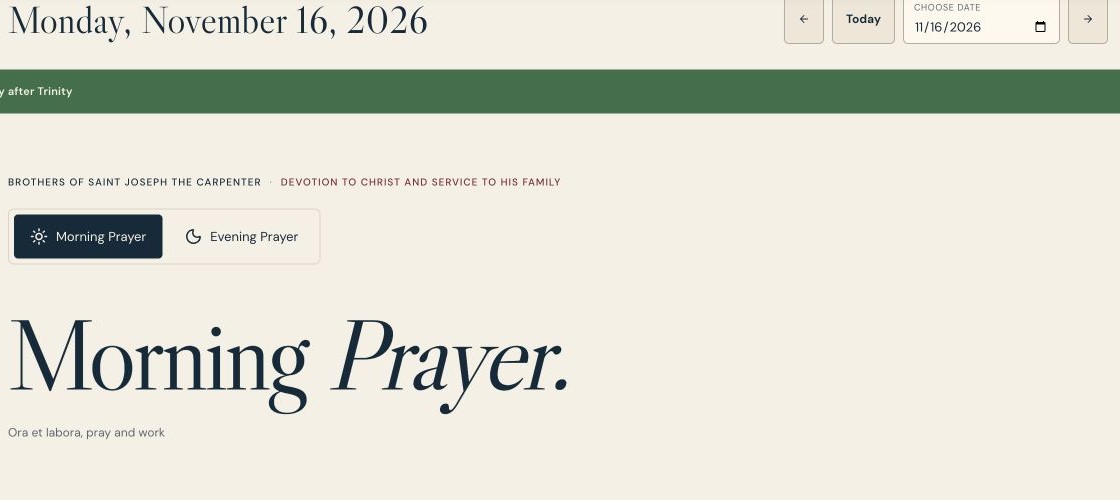
Choose Morning or Evening Prayer. Use the date selector or its arrows to open another day. Select Today to return to the current date. You can pray and read Scripture without an account.
Choose your prayer length
Use the All selector under the morning or evening pattern. Full gives the fuller order of prayer. Condensed keeps the appointed readings in a shorter service. Brief offers a simple devotion with as much Scripture as you choose.
Smaller selectors change individual sections. Choose one canticle at each point. The app selects an appointed substitution when required. On dates with a reading choice, you can follow the daily sequence or the Sunday or feast readings.
Read and share Scripture
- Open the reading. Select the appointed Psalm or lesson to read it in place. Built-in editions switch the text on the same page. Links under External open a separate site. NET and Brenton’s English Septuagint (LXX) are available where supported.
- Choose your defaults. When signed in, select the gear beside the translation options. Save separate preferences for Psalms, Apocrypha, Old Testament, and New Testament.
- Highlight or meditate. Tap a verse number or select text to open the Scripture tools. Sign in to save a highlight or meditation. Assign meanings to colors in Personal Journal.
- Copy or make an image. Choose Copy for text or Create Image for a shareable card. Pick a background and keep the image selection within 500 characters. The stole follows the day’s liturgical color.
Save your journal and progress
Sign in to save private prayer requests, answers to prayer, meditations, and intentions for Christ’s kingdom. Morning and Evening share one journal for each date. Use the Save button next to the entry you edited, or select “I prayed Morning Prayer” or “I prayed Evening Prayer” to save everything you’ve entered in that day’s journal. Then use Personal Journal to search and revisit saved entries.
For a meditation attached to a specific verse, use its own Save meditation button.
Mark an individual passage as read or mark the office prayed when finished. The Readings Calendar shows your progress by day. Open Your year in the menu for an annual view and a place to log chapters read outside the service.
Use the monthly welcome
Signed-in readers see the welcome once a day on arrival at today’s Morning Prayer. It includes a short app tip, the month’s readings and Church calendar highlights, and From Shane when a message has been published.
Choose one habit, one prayer need, one virtue, and one man to pray for, encourage in Christ, or witness to. Save your commitments. Select a date on the calendar to check off a habit you kept and pause to thank God. The calendar shows the liturgical color for each day. Reopen the panel from Your tools → Monthly devotion, or see your saved habits and days kept under Your year.
Display, print, and install
Use the toolbar to turn on Text Focus, switch to dark mode, adjust type with A− or A+, or return to the top. Text Focus has a small navigator tab that follows the service and lets you jump to a part.

Choose Print / PDF to prepare the selected day’s office for personal or small-group use. Print it or choose Save as PDF in your device’s print dialog. The installation guide explains how to add Common Prayer as an app to your phone or computer home screen.
Browse App features by topic, or read the Prayer Book introductions for non-Anglicans and Anglican users.
Need more help? Use Feedback & corrections at the foot of this page.